Why is my map staying pointed north?
If your map is staying pointed north, you likely have “North” selected for Map Orientation, or the map is set to the “All” perspective, which shows your whole recorded route.
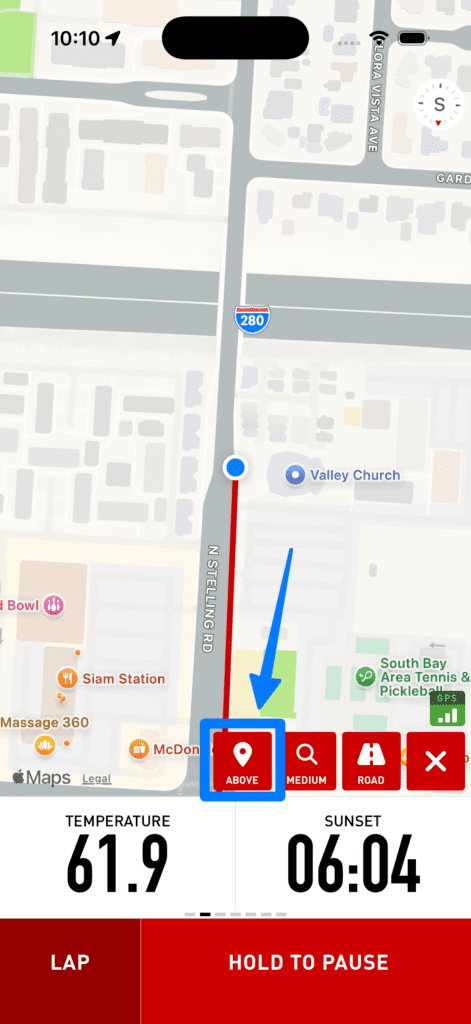
To change a single map on the Computer screen: tap the menu button at the bottom right, then tap the button that shows up on the far left to cycle between All, Above, and Follow.
To change the default for all maps: go to Cadence > Settings > Map Settings and switch Map Perspective to Above or Follow.
Once you’ve updated a specific map on the Computer screen it won’t inherit the default settings anymore. To make it work with the default again, view the screen layout in Cadence > Settings > Screen Layouts > layout type > tap the Map metric > tap Options > set the value to “Default”.
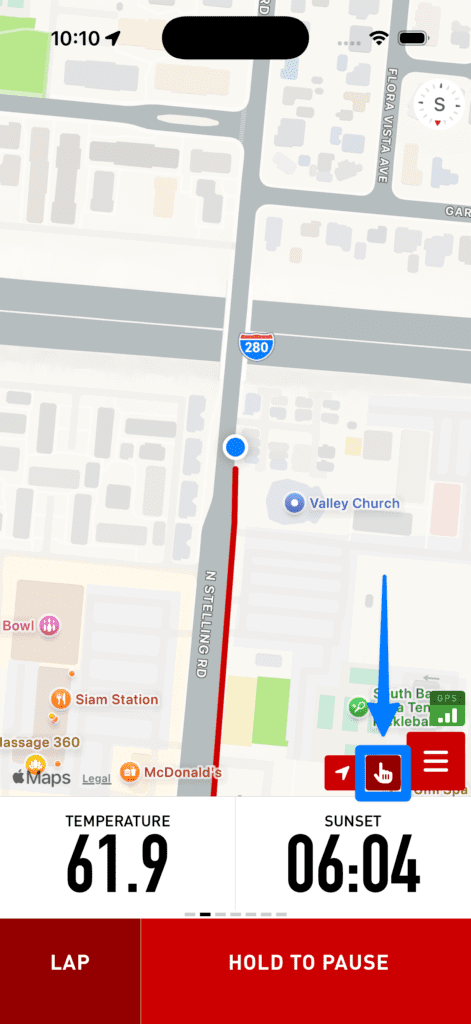
If your map is still staying oriented in a single direction, check if you’ve tapped the hand icon for “Free Mode”, which allows you to move and zoom on the map.
Also note that when Cadence is paused it always switches to the “All” perspective to show your whole recording, and then switches back to your previous perspective when resuming.